-
Visit the MFCMAPI page on
CodePlex to download the latest version of MFCMAPI.
When you are using a 64-bit version of Outlook, click on the Downloads link at the top of the page and download: MFCMAPI 64 bit executable - Extract the downloaded file and run mfcmapi.exe from within the extracted folder.
- Press OK on the first screen which displays some usage notes.
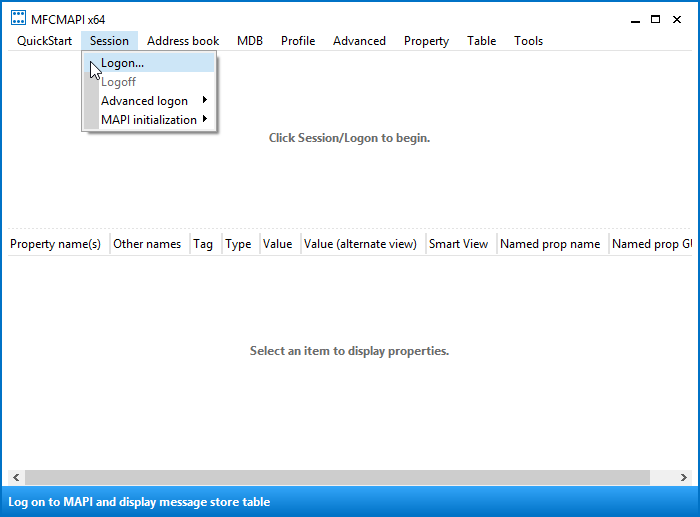
- Choose: Session-> Logon…
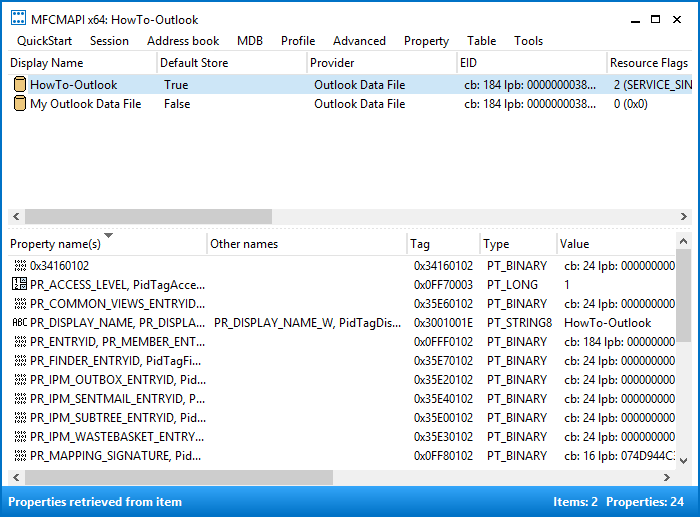
- Select your Outlook mail profile or simply press OK if you are not familiar with this dialog.
- Double click on the line which has the value for the Default Store column set to True.
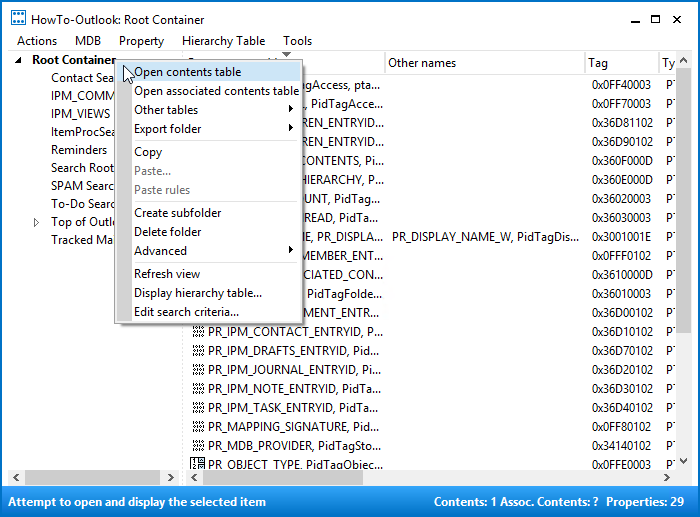
- Right click on the top-level folder in the left
panel and choose: Open contents table.
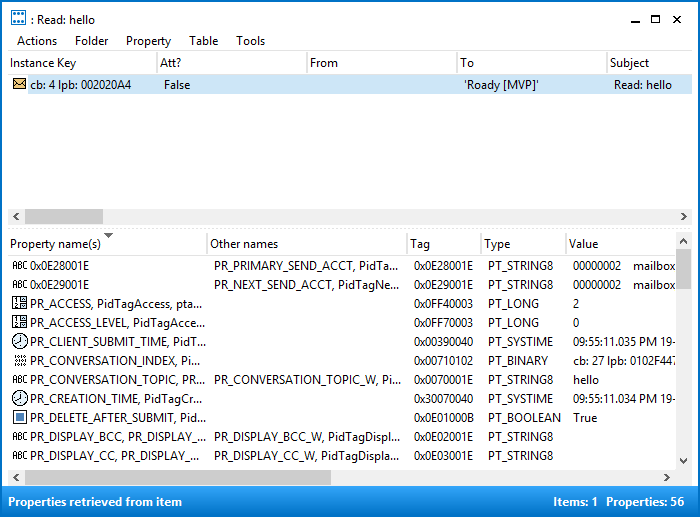
When you are using an Exchange account, this is called “Root – Mailbox” and otherwise it is called “Root Container”. - You should now see an item with a subject prefixed with the “Read:”.
- Select the message and choose: Actions-> Submit-> Abort submit…
- Make sure the message is still selected and choose: Actions-> Delete message
- Set the option to “Permanent delete passing DELETE_HARD_DELETE (unrecoverable)” and press OK.
- Repeat the abort and delete steps for each “Read:” message that is in the Root Container folder.
- Close all open windows of MFCMAPI.
Delete a stuck Read Receipt
Seeing messages being sent or are you getting sending errors without something in the Outbox?
This could be a stuck Read Receipt.
As they are invisible in your Outbox, it is kinda tricky to delete them. You can still do this via one of the following advanced (free) support tools from Microsoft: MFCMAPI or MDBVU32.
Important!
Before doing anything, make sure you have a current backup of your mailbox (just in case).
Deleting Read Receipts via MFCMAPI
MFCMAPI is actually a tool for Outlook MAPI developers but as it provides “low-level” access to Outlook’s data stores, it is also a handy tool for some advanced troubleshooting.
However, make sure you follow the instructions below very closely to prevent making any irreparable mistakes.
Click on image to enlarge.
Click on image to enlarge.
Click on image to enlarge.
Click on image to enlarge.

Click on image to enlarge.
Open Outlook and notice that the stuck Read Receipt is gone.
Da <http://www.howto-outlook.com/howto/deletereadreceipt.htm>